
How to Set a Custom Wallpaper on Any Device
 Dewdeck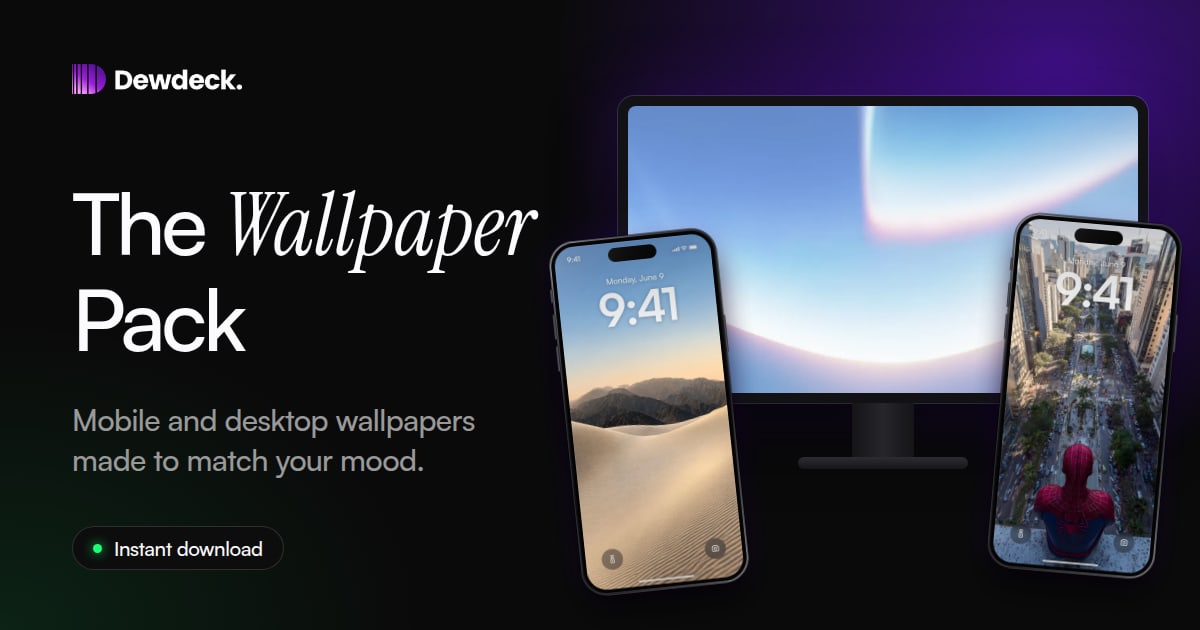
A good wallpaper is the cheapest way to make your devices feel like yours. It takes under a minute to change, and you'll see it dozens of times a day.
Here's how to set one on iPhone, Android, Mac and Windows, plus a few tips for picking images that actually look good.
iPhone
These steps are for iOS 16 and later.
- Save the image to your Photos.
- Open Settings, tap Wallpaper, then Add New Wallpaper.
- Tap Photos and choose the image.
- Pinch and drag to position it, then tap Add.
- Choose Set as Wallpaper Pair to use it on both screens, or Customize Home Screen to pick a different one for the home screen.
A shortcut: open the image in Photos, tap the Share button, then choose Use as Wallpaper.
Android
Menus differ by brand, but the idea is the same.
- Save the image to your gallery.
- Open it in Gallery or Google Photos.
- Tap the three-dot menu and choose Set as wallpaper (or Use as, then Wallpaper).
- Choose Home screen, Lock screen, or both.
You can also long-press an empty spot on your home screen and open Wallpaper & style.
Mac
Right-click the image in Finder and choose Set Desktop Picture. Or open System Settings, go to Wallpaper, and add your image from the Add Photo option.
Windows
Right-click the image and choose Set as desktop background. Or open Settings, go to Personalization, then Background, set Personalize your background to Picture, and choose Browse photos.
Tips for choosing a wallpaper that works
- Match the screen. Use a tall image for your phone and a wide 16:9 image for your desktop, so nothing gets cropped awkwardly.
- Mind the clock. On a lock screen the time sits near the top, so pick an image with calmer space there.
- Contrast beats detail. Darker or less busy images keep your icons and widgets readable.
- Match your mood. Calm for focus, bold for energy. It works the same way as choosing music for your mood.
- Change it now and then. A new wallpaper every month keeps your screen from fading into the background.
If your wallpaper looks blurry or cropped
- Blurry: use an image at least as large as your screen. If you received it in a chat app, ask for it to be sent as a file or document, because many apps shrink photos.
- Cropped: pick an image with the same shape as your screen, or use the pinch-and-drag step to reposition it before you save.
- Subject hidden behind the clock: move the image down a little, or choose one with more open space at the top.
- Looks different on the lock screen: some phones add a blur or dim effect there. Check the preview before you confirm.
Wallpapers made for this
The Dewdeck Wallpaper Pack has 33 original illustrated designs inspired by landscapes, anime-style art, cars, superheroes, movies and lifestyle looks, each in a phone size and a desktop size. They're original artwork, not official or licensed images, made to be set in seconds.